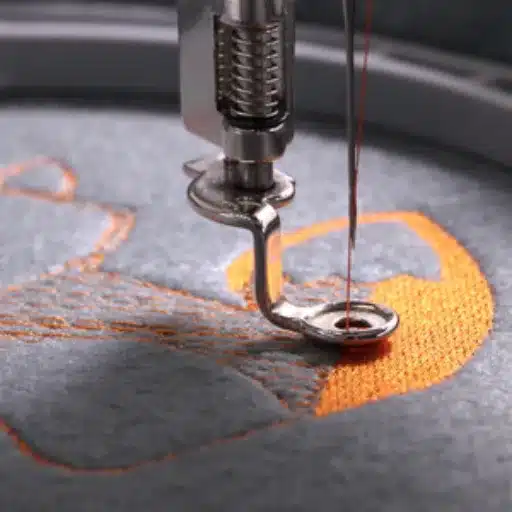

The growing availability of versatile vinyl sticker-making machines allows one to be freer when designing custom-made vinyl stickers and decals. Whether you are a DIY enthusiast or perhaps a small business owner willing to add a bit of personal touch to any of your creations or belongings, having the right machine is a big step in actualizing your ideas. But the overwhelming number of choices makes it difficult to pick the right one. This guide sheds light on the best vinyl sticker-making machines available to the consumer, distinguishing them by their respective features and benefits and explaining what makes them different. There is something for anyone from a newbie to a seasoned crafter. Read more to see how these cool machines think beyond custom!
How Does a Vinyl Sticker-Making Machine Work?

Essentially, a vinyl cutting machine cuts designs onto adhesive vinyl sheets based on digital files. One creates or loads a design in software that the machine accepts and sends it to the machine. That small blade then cuts the vinyl design precisely. Unwanted vinyl is weeded out, leaving behind just the design. Transfer tape can now be used to move the sticker to another surface. The machines provide excellent efficiency, offering professional results for almost any custom project.
What is a Vinyl Sticker Making Machine?
The vinyl sticker-making machine is a versatile tool that can precisely make custom stickers, decals, and labels. It cuts designs off an adhesive vinyl sheet or roll so that the user can make various personalized items, from business branding to home decor to crafts projects. Most modern machines are miniature and easy to operate, thus making them accessible to both professionals and hobbyists.
Important Features and Characteristics
- Cutting Precision
Very advanced machines have tiny blades or lasers capable of executing designs down to the accuracy of a millimeter.
- Compatibility with Design Software
Generally, the vinyl cutter is interoperable with design programs such as Adobe Illustrator, CorelDRAW, or proprietary software, allowing users to create or import their own custom designs. Some models even offer Bluetooth or Wi-Fi connectivity for a more user-friendly experience.
- Material Versatility
Most vinyl sticker machines can cut materials other than vinyl, such as heat transfer vinyl, cardstock, or thin fabrics, increasing the scope of projects one can undertake.
- Automated Adjustments
Newer cutters are ingeniously designed to automate the process by measuring pressure and speed level adjustments, which vary with the thickness of the material, resulting in accurate cuts.
Modern Upgrades and Market Learnings
Numerous industry reports have stated that the vinyl cutter market is expected to experience steady growth, with a growing need for customization and custom branding. Renowned brands like Cricut, Silhouette, and Brother rule the market with easy-to-use machines that cost about $200-$800, depending on the model and features. On the other hand, high-end machines cost more than $3,000 and are suitable for big operators requiring high production capacity purchases.
Common Applications
- – Personalized Products: Custom stickers for mugs, phone cases, and notebooks.
- – Small Business Branding: Make logos, promotional decals, or products for marketing purposes.
- – Crafting and DIY Projects: Scrapbook enhancement, wall art, and making of distinctive gifts.
With growing research and development investment, vinyl sticker-making machines are becoming highly efficient and customizable to cater to an expanding market seeking an outstanding balance between quality and convenience in sticker production.
How to Use a Sticker Printer for Custom Designs?
- Choose Software for Designing: Select a design software that suits your needs. Adobe Illustrator, Canva, or CorelDRAW are all excellent choices. Also, make sure that the software can create and export high-resolution files compatible with your sticker printer.
- Prepare Your Design: You can start from scratch or import a design. In any case, size, color, and layout adjustments should be made depending on how these stickers will be used. For the prints to come out correctly, always work with CMYK color mode. The minimum resolution should be 300 DPI so that the image is clear.
- Choosing Your Sticker Material: Consider your project and pick a sticker material, maybe glossy, matte, or waterproof vinyl. Depending on your printer, these sheets are available in sheets or rolls.
- Set Printer Settings: Set printer settings for your sticker material and design. These settings should consider print quality, color calibration, and paper type.
- Cut and Finish: Once printing is complete, use your sticker printing machine’s cutter or a separate cutter, such as a vinyl cutter, to cut the edges precisely. Laminating the stickers before cutting would enhance their durability.
Hence, following these steps will ensure you get high-quality, professional custom stickers tailored to your creative needs.
Advantages of Using a Vinyl Sticker Making Machine
|
Key Point |
Description |
|---|---|
|
High Efficiency |
Combines printing, cutting, and lamination. |
|
Precision |
Produces accurate and detailed designs. |
|
Durability |
Water, UV, and abrasion-resistant stickers. |
|
Versatility |
Works with various materials and applications. |
|
Customization |
Supports personalized and small-batch orders. |
|
Cost-Effective |
Reduces waste and operational costs. |
|
Ease of Use |
User-friendly interface for beginners. |
|
Fast Production |
Handles large volumes quickly. |
|
Professional Quality |
Delivers vivid colors and sharp images. |
|
Broad Applications |
Suitable for business, personal, and creative use. |
What to Consider When Choosing a Sticker Machine?

While selecting a sticker machine, certain key aspects are to be considered:
- Purpose and Usage: Determine whether it fits your projects, such as personal crafting, small business production, or high-volume commercial production.
- Material Compatibility: Check if the types of materials your machine works with include vinyl, paper, and special sticker sheets.
- Print Quality: Look for the one that assures high resolution and clarity so your design can stand out in color and composition.
- Ease of Use: Ensure a doable interface that’d least challenge users and software to design stickers that are equally accessible.
- Size and Capacity: Choose a machine that fits in your working space yet can produce the size and quantity of stickers you intend to produce.
- Budget: Trade your initial cost with operating costs: ink, cutters, and maintenance.
- Additional Features: Consider features such as a built-in cut option, lamination, and wireless connectivity.
Evaluating these aspects will lead you to the sticker machine that best suits your needs and smooth production methods.
Features of a Good Vinyl Cutter
- Cutting Precision
A vinyl cutter must cut with great precision to produce fine designs and smooth edges. Go for models with variable blade pressure and accuracy measured in millimeters.
- Cutting Speed
Speed is crucial for bulk production. The vinyl cutter should have adjustable speed settings so every project can be done efficiently without compromising quality.
- Material Compatibility
Versatility in handling various materials like vinyl, heat transfer vinyl (HTV), cardstock, or even fabric is essential, allowing it to accommodate project requirements of diverse nature.
- Ease of Use
Such a product needs to have a good wizard interface, customizable settings, and the ability to work with some big-name design software; these, among other things, will prove critical to its efficiency and straightforwardness.
- Durability and Build Quality
A good vinyl cutter will have a robust build quality that ensures it will last for a while; such a purchase will be an investment. This is because it is built solidly, so it is less likely to have any wear and tear with time.
Comparing Cricut and Other Cutting Machines
|
Key Point |
Cricut |
Other Machines (e.g., Silhouette, Siser) |
|---|---|---|
|
Cutting Speed |
Up to 11.3 inches/second |
Up to 23 inches/second (Siser Juliet) |
|
Material Compatibility |
Cuts 300+ materials |
Varies, up to 100+ materials |
|
Cutting Force |
Up to 4kg |
Up to 5kg (Silhouette Cameo) |
|
Software |
Cricut Design Space, beginner-friendly |
Advanced options like Silhouette Studio |
|
Cutting Size |
Up to 12 feet (with Smart Materials) |
Up to 16 feet (Silhouette Cameo 5) |
|
Noise Level |
Moderate |
Quieter (e.g., Siser Juliet) |
|
Cost |
$229–$429 |
$199–$520 |
|
Ease of Use |
Ideal for beginners |
Advanced features for professionals |
|
Customization |
Limited without subscription |
More flexibility with design software |
|
Durability |
Reliable for casual crafting |
Professional-grade options available |
Choosing Between an Inkjet Printer and a Thermal Printer
Depending on printing volume, quality, and cost-efficiency needs, an inkjet or thermal printer will be most suitable.
Inkjet Printers
Inkjet printers are versatile and capable of producing high-resolution prints; thus, they can render sharp details with good color. They are mainly for photo printing and to a lesser extent for document printing. The other side of the coin is that inkjet printers accept extensive media, ranging from glossy photo papers to labels and even fabric. Nevertheless, they can mostly yield more than the average cost per page because the cartridges must be replaced often; they may dry up if not used regularly. Generally, the cost per print ranges between $0.05 and $0.10 for black and white prints and between $0.15 and $0.25 for color.
Thermal Printers
Thermal printers, conversely, are good at speed and volume: perfect for printing labels, receipts, or tickets on a high-volume scale. Below we describe how thermal printers work: They apply heat to transfer dyes from a dye ribbon onto paper or make the paper turn colors where activated by heat. Since no ink or toner is involved, the ongoing operational costs are very low. However, the major drawback is the lack of color printing capability (except with color thermal transfer ribbons); typically, application areas are focused on very few, such as shipping labels. Their cost efficiency is thus noteworthy, with operational costs coming to less than $0.01 a label.
Key Comparisons
|
Feature |
Inkjet Printer |
Thermal Printer |
|---|---|---|
|
Printing Technology |
Uses liquid ink sprayed onto media |
Relies on heat and special paper |
|
Cost Per Page |
Higher; depends on cartridge usage |
Lower; no ink or toner required |
|
Print Quality |
High resolution; vibrant colors |
Average; primarily black-and-white |
|
Speed |
Moderate |
Extremely fast |
|
Ideal Use Case |
Photos, documents, diverse media |
Labels, receipts, and mass printing |
Which Should You Choose?
Suppose high resolution is the target image alongside very versatile media compatibility. In that case, this should be a choice for an inkjet printer, mainly for creative projects or photo printing. However, if the factor to consider is volume and cost, such as durability for printing labels or receipts, then thermal will be better suited to the job. Scrutinize your primary needs so you can choose.
How to Make Custom Stickers Using a Cricut?

- Gather Your Materials
You will need: a sticker paper, a Cricut cutting machine, a printer, a light grip mat, and design software such as Cricut Design Space.
- Designing
Create or upload your sticker designs using Cricut Design Space or an alternative design software. Size them accordingly and arrange them on the template.
- Printing
Load your sticker paper in the printer and print your design. Always select the appropriate printer settings for the best quality prints.
- Preparing for Cricut
Place your printed sticker sheet on the light grip mat and load the mat into the Cricut. Select the correct material type (e.g., “Printable Sticker Paper”) in Cricut Design Space.
- Cutting
To cut your designs, follow the instructions in Cricut Design Space. The Cricut will detect the registration marks around your design and cut.
- Peeling and using
Now, carefully peel the sticker from the sheet, and it is ready for use! You can stick it onto notebooks, planners, or any other surface.
Easy steps towards creating custom home stickers that look straight out of a professional studio.
Setting Up Your Cricut Explore 3 for Sticker Making
To set your Cricut Explore 3 up for sticker making, connect the machine to Cricut Design Space, update the firmware, use a fine-point blade, and select the right material setting for print-then-cut projects.
Using Design Space for Vinyl Sticker Designs
|
Key Point |
Description |
|---|---|
|
Software |
Cricut Design Space, free to download. |
|
Subscription |
Cricut Access is required for advanced features. |
|
Compatible Machines |
Cricut Explore, Maker, Joy Xtra, Venture. |
|
Printer Type |
Inkjet printers only, not laser. |
|
Cut Styles |
Die-cut or kiss-cut options available. |
|
Customization |
Add borders, adjust thickness, and colors. |
|
Material Options |
Printable vinyl, sticker paper, waterproof sets. |
|
Calibration |
Print Then Cut calibration required. |
|
Ease of Use |
Beginner-friendly with guided steps. |
|
Output Quality |
High precision with fine-point blade. |
Printing and Cutting with Printable Vinyl Sticker Paper
- Choose Your Design in Cricut Design Space
Select or upload your own design into Cricut Design Space. Ensure it is adequately sized for the desired sticker dimensions.
- Prepare Your Printable Vinyl Sticker Paper
Load the printable vinyl sticker paper into your printer by placing it with the print side up (refer to your printer’s manual). Use either matte or glossy type sticker paper, depending on your preference.
- Print Your Design
Make sure the printer is well calibrated. Use the “Print Then Cut” function in Cricut Design Space. For the printer settings, use the best or high-resolution quality setting.
- Place the Printed Vinyl on the Cutting Mat
Allow the inks to dry thoroughly to prevent smudging. Place the printed vinyl sheet on the Cricut LightGrip or StandardGrip cutting mat, accurately aligned with the mat’s guides.
- Cut Your Stickers with Your Cricut Explore 3
Load the mat into your Cricut Explore 3. From Design Space, set the material type to “Printable Vinyl” and ensure the fine-point blade is in. Begin the cutting, wherein the Cricut machine will cut along the sticker outlines with precision.
Following these steps, you’ll have professional-looking printable vinyl stickers using Cricut Explore 3.
What Materials Do I Need for Vinyl Sticker Production?

The things you will require to produce vinyl stickers are:
- Printable Vinyl Sheets–Inkjet tattoo Printer-oriented materials for long-lasting sticker making.
- Inkjet Printer–To print on vinyl sheets, your design.
- Laminating Sheets (Optional)–Provide durability and permeability against water.
- Cricut Explore 3 or any other cutting machine–To cut stickers accurately.
- StandardGrip Mat–Will hold the vinyl sheet while cutting.
- Fine-point Blade–Required for cutting the delicate shapes on the sticker.
So these are the materials you asked for for high-quality vinyl sticker production.
Types of Sticker Paper for Inkjet Printer
|
Type |
Description |
|---|---|
|
White Matte |
Affordable, vibrant colors, non-waterproof. |
|
Glossy |
Shiny finish, vibrant colors, professional look. |
|
Weatherproof Matte |
Water-resistant, durable, vibrant colors. |
|
Vinyl |
Waterproof, tear-resistant, professional quality. |
|
Clear Glossy |
Transparent, shiny, vibrant colors. |
|
Clear Matte |
Frosted look, subtle, vibrant colors. |
|
Brown Kraft |
Rustic, eco-friendly, textured finish. |
|
Magnetic |
Printable magnets, durable, versatile. |
Using Transfer Tape for Decals
Applying transfer tape onto decals is pretty simple. First, I ensure the decal is clean and ready by carefully peeling off any backing paper. I then place the transfer tape on the decal and smooth it out with a squeegee or something similar to ensure it sticks completely. Once entirely in place, I lift the transfer tape so the decal comes off. Position onto the surface, give it a firm press, and slowly back-peg the transfer tape while leaving the decal down perfectly.
Exploring Vinyl Sticker Paper for Inkjet Options
|
Brand/Type |
Key Features |
|---|---|
|
Koala Glossy Vinyl |
Waterproof, tear-resistant, vibrant colors. |
|
Koala Matte Vinyl |
Waterproof, compatible with cutting machines. |
|
JOYEZA Premium Vinyl |
Water-resistant, tear-resistant, vibrant colors. |
|
Online Labels Matte |
Water-resistant, bright colors, bulk options. |
|
Small Smile Vinyl |
Budget-friendly, thin, ideal for beginners. |
|
A-SUB Clear Vinyl |
Transparent, waterproof, durable. |
|
HTVRONT Vinyl |
Matte and glossy options, tear-resistant. |
|
Koala Holographic Vinyl |
Rainbow effect, waterproof, glossy finish. |
Are Bluetooth Sticker Maker Machines Worth It?

Bluetooth sticker maker machines may be just the thing for you if convenience and flexibility are high on your list. These machines wirelessly connect to devices through Bluetooth; hence, one can design and print from his or her smartphone or tablet. People with little desk space or who create a lot of stickers in various places will find this feature beneficial. Accordingly, these machines may be costlier than usual, so you need to look into your situation and budget to decide.
Benefits of a Portable Mini Sticker Maker
| Key Benefit | Description |
|---|---|
|
Compact Design |
Lightweight and easy to carry anywhere. |
|
Quick Operation |
Instant results without warm-up or cool-down. |
|
Mess-Free |
No messy adhesives; clean and odor-free. |
|
Versatile Use |
Works with photos, paper, fabric, and more. |
|
Wireless Connectivity |
Bluetooth/Wi-Fi for seamless device pairing. |
|
Refillable |
Easy-to-replace adhesive cartridges. |
|
Cost-Effective |
Reduces reliance on professional printing. |
|
Creative Freedom |
Customizes stickers for personal or business use. |
|
Energy Efficient |
Non-electric or battery-powered options. |
|
Space-Saving |
Ideal for small workspaces or travel. |
Comparison of Bluetooth vs. Wired Sticker Printers
| Parameter | Bluetooth Sticker Printer | Wired Sticker Printer |
|---|---|---|
|
Connectivity |
Wireless, uses Bluetooth |
Requires a physical cable connection |
|
Portability |
Lightweight, easy to move |
Stationary, less portable |
|
Print Speed |
Slower due to wireless connection |
Faster with a stable connection |
|
Print Quality |
Similar to wired, it depends on model |
Consistent and reliable output |
|
Compatibility |
Limited to Bluetooth-enabled devices |
Broad compatibility with many devices |
|
Setup |
Simple pairing process |
Plug-and-play with driver installation |
|
Maintenance |
Requires monitoring of battery life |
Less frequent, no battery dependency |
|
Cost |
Higher upfront cost, ongoing battery expense |
Lower initial cost, minimal ongoing expense |
|
Security |
Vulnerable to wireless interception |
More secure due to physical connection |
Top Mini Printer Sticker Options
Regarding the best mini printer sticker options, I’d suggest the Phomemo M02 Pocket Printer, PeriPage A6 Mini Printer, and the HP Sprocket Select. Compact and easy to use, the M02 provides nice printing results for small prints. Another great one is the PeriPage A6, equipped with Bluetooth functionality and many customization options, pushing the boundary between work and play in your creative projects. Meanwhile, the HP Sprocket Select is the go-to option for color printing and app editing/sharing of designs. Each choice has its strong suit, so it depends on what you’re after and want.
References
-
The Populist Conservator: A Sticky Case Study – A study discussing vinyl stickers and tools, available on KU ScholarWorks.
-
Welcoming Newcomers to Makerspaces – An article about using tools like the Cricut Maker Machine for vinyl sticker projects, published by the University of Wyoming.
-
Making Space: Pedagogical Interventions to Foster Equity in Introductory Maker Education – A study from MIT discussing maker education, including vinyl sticker projects.
Frequently Asked Questions (FAQ)
Q: What is the best vinyl sticker-making machine for beginners?
A: The Cricut Joy is a popular choice for beginners due to its user-friendly design and compatibility with the Design Space app. This makes it easy to start creating custom stickers and decals.
Q: How does a vinyl cutter machine differ from a vinyl printer?
A: A vinyl cutter machine is designed to cut shapes and designs from vinyl material, whereas a vinyl printer prints designs directly onto vinyl before cutting. A printer and cutter combination can perform both tasks.
Q: What should I look for in a sticker and label maker machine?
A: Look for features such as ease of use, compatibility with design software, cutting precision, and versatility in handling different materials like heat transfer vinyl and print and cut vinyl.
Q: Can a mini sticker printer handle large projects?
A: While a mini sticker printer is ideal for small, quick projects, it may not be suitable for large-scale production. For bigger projects, consider a more robust vinyl sticker cutting machine or a machine for small business applications.
Q: Is the Silhouette Cameo suitable for professional use?
A: Yes, the Silhouette Cameo is suitable for professional use. It offers precise cutting capabilities and compatibility with various materials, making it a favorite among small business owners.
Q: How important is the design space app for creating custom labels?
A: The design space app is crucial as it allows users to create, edit, and manage designs easily before sending them to the vinyl cutter machine, enhancing creativity and efficiency in producing custom labels.
Q: Can I use a Bluetooth label maker to make stickers?
A: Yes, a Bluetooth label maker can make stickers, especially for simple designs requiring quick and wireless operation. However, a more advanced vinyl sticker cutting machine may be necessary for more complex sticker designs.
Q: What are the advantages of using an intelligent cutting machine?
A: Smart cutting machines offer precision automated cutting, compatibility with various design software, and the ability to work with a wide range of materials, making them versatile for creating intricate stickers and decals.
Q: How does the Cricut Maker 3 compare to other vinyl cutting machines?
A: The Cricut Maker 3 stands out for its powerful cutting capabilities, speed, and compatibility with a wide range of materials, including thick ones like leather. It offers more versatility than other vinyl cutting machines.
Q: What materials can I use with a vinyl cutter machine?
A: A vinyl cutter machine can work with various materials, including adhesive vinyl, heat transfer vinyl, cardstock, and specialty papers, allowing you to create diverse stickers and decals.